How to Use WordPress Fast and Easy — The No-BS Guide for 2026
You want to know how to use WordPress, but every guide you find reads like it was written by a robot that swallowed a textbook. Here’s the real problem: most wordpress tutorials bury you in jargon, skip the stuff that actually matters, and leave you staring at a half-built site wondering what went wrong. That frustration? I’ve felt it — back in 2013, when I launched my first site and nearly rage-quit after three hours of fighting with permalink settings. The good news: WordPress doesn’t have to be painful. I’ve spent over a decade building, breaking, and rebuilding WordPress sites — for myself, for clients, and for fun. This wordpress guide is everything I wish someone had handed me on day one.
Table of Contents
- What Is WordPress (And Why Should You Care)?
- WordPress.org vs. WordPress.com — Settle This Once
- Setting Up WordPress in Under 15 Minutes
- Navigating the Dashboard Without Losing Your Mind
- Choosing a Theme That Won’t Slow You Down
- Essential Plugins — The Only Ones You Actually Need
- Creating Content That Ranks and Reads Well
- Advanced Tactics Most Tutorials Skip
- Frequently Asked Questions
- My Top Recommended Gear
What Is WordPress (And Why Should You Care)?
WordPress is a free, open-source content management system (CMS) that powers over 43% of all websites on the internet. It lets anyone — regardless of technical skill — build a website, blog, or online store using themes, plugins, and a visual editor, without writing a single line of code.
That stat isn’t marketing fluff. According to W3Techs’ usage statistics, WordPress dominates the CMS market with a share that dwarfs every competitor combined. From tiny personal blogs to the official websites of The White House and Harvard University, WordPress handles it all. Why? Because it’s absurdly flexible, free to start, and backed by the largest open-source community on the planet.
If you’re serious about learning to build a website that you actually own and control, WordPress is the tool. Period. And if you want a step-by-step roadmap for turning that site into something that earns, start here for the full beginner’s blueprint.
WordPress.org vs. WordPress.com — Settle This Once
This is the single biggest source of confusion for WordPress for beginners, and I’m going to kill it right now.
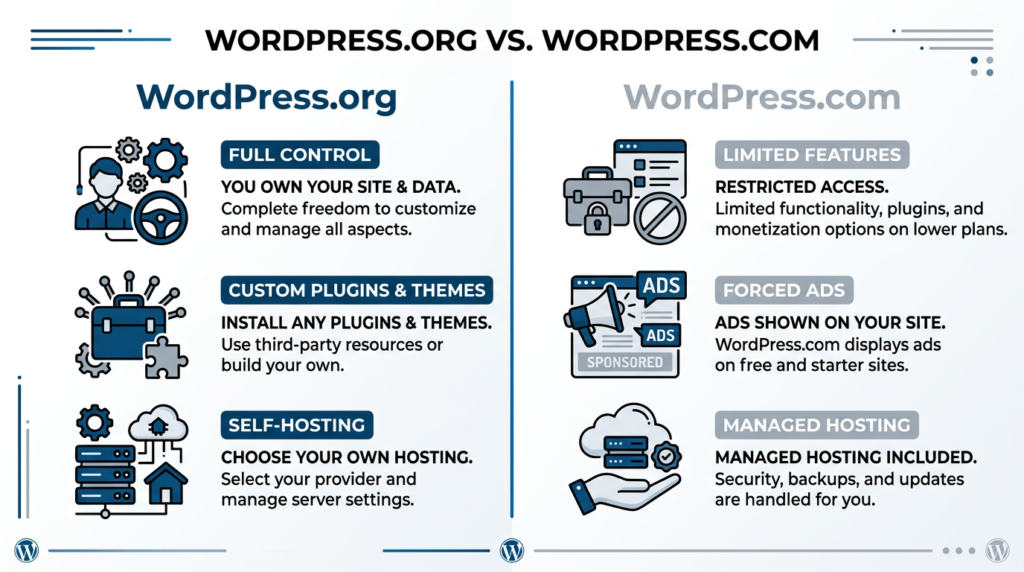
- WordPress.org — The self-hosted version. You download the software (free), install it on your own hosting account, and control everything. Themes, plugins, monetization, data — all yours. This is what professionals use. This is what I use. This is what you should use.
- WordPress.com — A hosted platform run by Automattic. The free plan is extremely limited: no custom plugins, forced ads on your site, and a subdomain (yoursite.wordpress.com). Paid plans exist but get expensive fast, and you still don’t have full control.
Myth I need to bust: “WordPress.com is easier for beginners.” Nope. The interface is nearly identical. The only difference is who controls the server. With modern hosts offering one-click WordPress installs, the “difficulty” gap is zero. Go self-hosted. You’ll thank me in six months when you want to install a plugin and don’t hit a paywall.
Setting Up WordPress in Under 15 Minutes
I’m not exaggerating with that headline. Here’s exactly what you do:
- Step 1: Get hosting. I recommend Bluehost, SiteGround, or Cloudways depending on your budget. Most offer one-click WordPress installation and a free domain for the first year. WordPress.org officially recommends several hosts on their site.
- Step 2: Pick a domain name. Keep it short, brandable, and easy to spell. Avoid hyphens and numbers. If yourbrandname.com is taken, try .co or .blog before butchering the spelling.
- Step 3: Install WordPress. Click the “Install WordPress” button in your host’s control panel (cPanel, Plesk, or custom dashboard). Fill in your site name and admin credentials. Done.
- Step 4: Log in. Navigate to yourdomain.com/wp-admin. Congratulations — you’re looking at the WordPress dashboard.
The whole process takes 10–15 minutes. If you’re building a site with the goal of generating income, I wrote a detailed walkthrough on how to start a blog that actually makes money — it covers hosting selection, niche picking, and monetization strategy from the jump.
Navigating the Dashboard Without Losing Your Mind
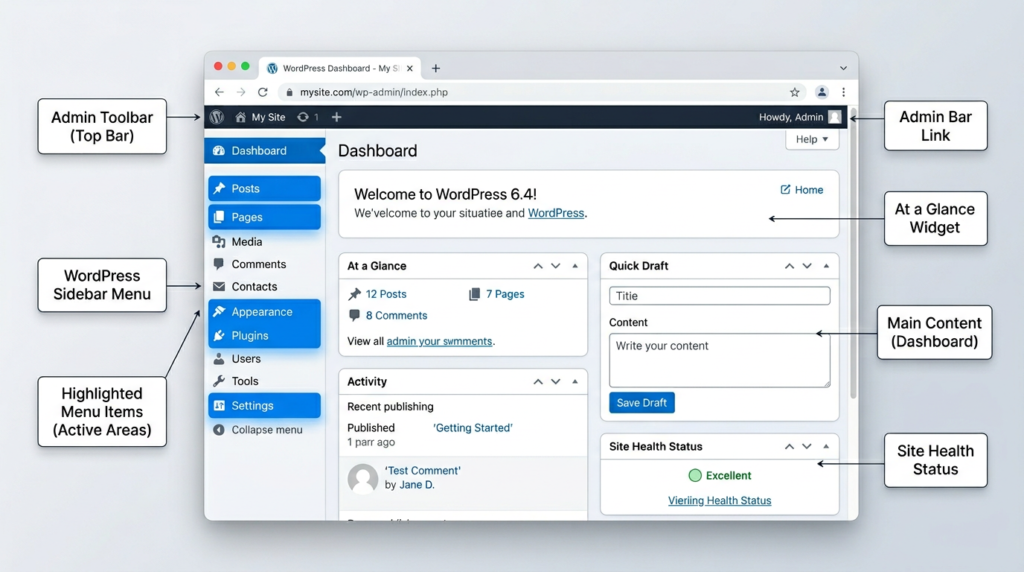
The WordPress dashboard looks overwhelming the first time. It isn’t. Here’s the cheat sheet:
- Posts — Your blog articles. Use this for time-stamped, regularly published content.
- Pages — Static content like About, Contact, and your homepage.
- Appearance > Themes — Where you control your site’s visual design.
- Plugins — Where you add functionality (SEO, caching, forms, security).
- Settings — Permalinks, site title, timezone, reading preferences. Set your permalink structure to “Post name” immediately. Seriously — do this before you publish anything. Changing it later breaks all your URLs.
- Users — Manage who can access your site and with what permissions.
Pro tip from someone who learned the hard way: ignore the “Dashboard” home screen. It’s mostly widget noise. Go straight to Settings > Permalinks, set it to “Post name,” hit save, then head to Appearance > Themes. That’s your real starting workflow.
Choosing a Theme That Won’t Slow You Down
Here’s where most beginners blow it — they pick a theme that looks “cool” in the demo and runs like a 1998 dial-up connection in production. Your theme is the foundation of your website design. Choose poorly and you’ll pay for it with slow page loads, janky mobile layouts, and SEO penalties.
What to look for:
- Lightweight codebase (under 100KB of CSS/JS on load)
- Mobile-responsive by default
- Compatible with the block editor (Gutenberg)
- Regular updates and active developer support
- Schema markup built in
My personal pick? Kadence. I’ve tested over 40 themes in the last decade, and Kadence strikes the best balance between speed, flexibility, and design quality. I broke down exactly why in my Kadence theme review for bloggers. IMO, it’s the best free theme available in 2025.
Themes to avoid: Anything that bundles Visual Composer (now WPBakery), loads 15+ Google Fonts, or hasn’t been updated in over 6 months. These are performance killers and security liabilities.
Essential Plugins — The Only Ones You Actually Need
Plugin bloat is real. Every plugin adds code, database queries, and potential security holes. Here’s my no-fluff starter stack — these are the blogging tools I install on every single new WordPress site:
- Rank Math SEO — Handles on-page SEO, sitemaps, schema, and redirects. Free tier is insanely generous.
- LiteSpeed Cache (or WP Super Cache) — Page caching, image optimization, CSS/JS minification. Speed matters — Google’s PageSpeed documentation makes the ranking implications very clear.
- UpdraftPlus — Automated backups to Google Drive or Dropbox. Non-negotiable.
- Wordfence — Firewall and malware scanning. The free version handles 95% of threats.
- WPForms Lite — Simple contact form builder. Drag, drop, done.
That’s five plugins. Not thirty. I’ve seen WordPress sites with 40+ active plugins that take 8 seconds to load. Don’t be that person. For more tool recommendations, check out my full recommended tools page.
🔥 Pro Recommendation: WP Engine Mastery Toolkit
If you want to take your WordPress skills from “I just installed it” to “I build sites that convert,” I highly recommend checking out the WordPress Site Building Blueprint on ClickBank. It covers advanced theme customization, speed optimization, and monetization strategies that most free tutorials completely skip.
This is an affiliate link — I only recommend products I’ve personally vetted.
Creating Content That Ranks and Reads Well
Alright — your site is live, your theme is fast, and your plugins are installed. Now comes the part that actually matters: creating content. WordPress gives you two editors:
- Block Editor (Gutenberg) — The default since WordPress 5.0. Everything is a “block” — paragraphs, images, headings, columns, buttons. It’s like a simplified page builder baked right in. I resisted it for a year (classic editor gang 🙋), then finally switched and never looked back.
- Classic Editor — Available via plugin if you prefer the old-school WYSIWYG. Functional but limited compared to blocks.
WordPress tips for content creation:
- Write your target keyword in the first 30 words of every post.
- Use H2 and H3 tags to structure your content — both readers and search engines rely on them.
- Add alt text to every image. Google can’t “see” images; it reads your alt descriptions.
- Internal link to your own related posts. This keeps readers on your site and distributes “link juice” for SEO. I aim for one internal link every 250–300 words minimum.
- Write meta descriptions manually — don’t let WordPress auto-generate them from your first paragraph.
For deeper reading on creating content that generates affiliate revenue, my guide on affiliate marketing for bloggers covers the exact strategy I use.
Expert Commentary: This is one of the most thorough and up-to-date WordPress walkthroughs on YouTube — I recommend watching it at 1.5x speed alongside this guide for a visual companion that reinforces every step I’ve covered here.
Advanced Tactics Most Tutorials Skip
Here’s where I separate this wordpress guide from the hundred other “how to install WordPress” posts flooding the internet. These are the things I do on every site that most tutorials never mention:
1. Disable WordPress Cron and Use Real Cron
WordPress uses a “fake” cron system (wp-cron.php) that fires on page load. On low-traffic sites, scheduled posts might not publish on time. On high-traffic sites, it fires on every visit and wastes resources. Add define('DISABLE_WP_CRON', true); to your wp-config.php and set up a real server cron job via your host’s control panel to run every 15 minutes. The WordPress Developer Handbook documents this clearly.
2. Harden wp-config.php
Move your wp-config.php file one directory above your WordPress installation root. WordPress will still find it, but attackers probing your public folder won’t. Also, add unique authentication keys and salts — generate them at WordPress’s official salt generator.
3. Use a Child Theme From Day One
If you ever plan to customize your theme’s code — even adding a few lines of CSS — create a child theme first. A theme update without a child theme will wipe every customization you’ve made. I’ve seen people lose weeks of work because they skipped this five-minute setup.
4. Set Up Staging Before Making Big Changes
Most decent hosts (SiteGround, Cloudways, WP Engine) offer one-click staging environments. Use them. Test plugin updates, theme switches, and PHP version upgrades on staging before touching your live site. Seriously. I broke a client’s site in 2019 because I updated a plugin directly on production. Never again 🙂
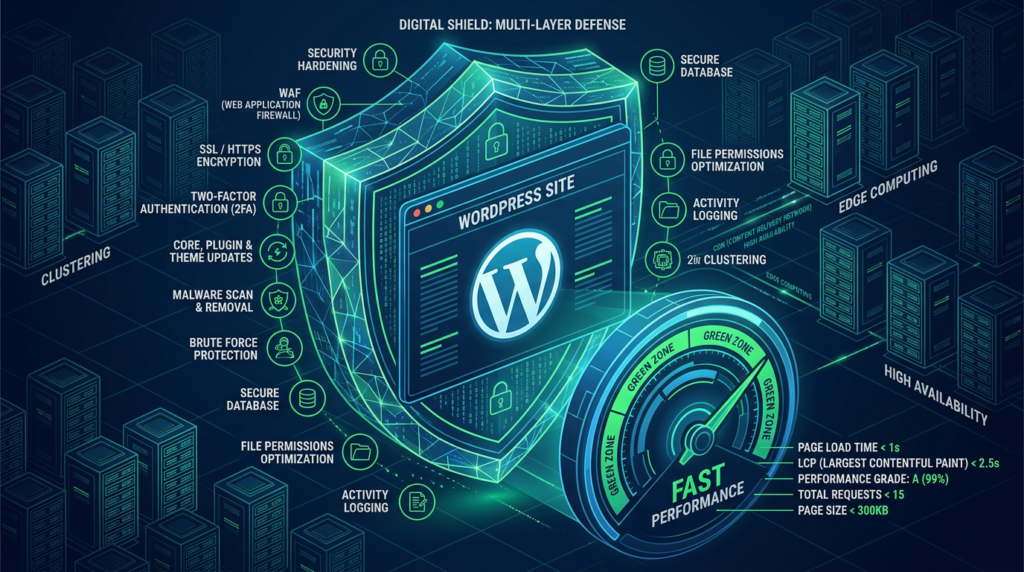
5. Optimize Images Before Uploading
Don’t upload a 4MB DSLR photo and expect WordPress to handle it. Run images through ShortPixel or Squoosh before uploading. Convert to WebP format. Aim for under 100KB per image. Your Core Web Vitals score — and your visitors’ patience — will thank you.
Frequently Asked Questions
Is WordPress free to use?
WordPress.org software is 100% free. However, you’ll need to pay for web hosting (typically $3–$12/month) and a domain name (around $10–$15/year). Premium themes and plugins are optional costs that can enhance your site but aren’t required to get started.
How long does it take to learn WordPress?
Most beginners can learn the WordPress basics — publishing posts, installing themes, adding plugins — in a single weekend. Mastering advanced features like custom post types, SEO optimization, and performance tuning typically takes 2–4 weeks of consistent practice.
What is the difference between WordPress.com and WordPress.org?
WordPress.com is a hosted platform with limited customization on free plans. WordPress.org is the self-hosted, open-source version that gives you full control over your site, including the ability to install any theme or plugin and monetize freely. I always recommend WordPress.org for anyone serious about their site.
Do I need to know coding to use WordPress?
Absolutely not. WordPress was designed for non-coders. The block editor (Gutenberg) allows you to build pages visually. Knowing basic HTML or CSS is a bonus but never a requirement for building a professional website.
What are the best plugins for WordPress beginners?
The essential starter stack includes Rank Math SEO for search optimization, WPForms Lite for contact forms, UpdraftPlus for backups, LiteSpeed Cache or WP Super Cache for speed, and Wordfence for security. That’s five plugins — keep it lean.
My Top Recommended Gear
These are the physical tools and resources I use daily for content creation and site management. Solid hardware makes the WordPress workflow significantly faster:
- Logitech MX Keys Keyboard — My go-to for long writing sessions. The key travel is perfect and it switches between three devices. Check price on Amazon
- Samsung T7 Portable SSD (1TB) — I keep full site backups on one of these. Fast, tiny, and reliable. Check price on Amazon
- LG 27″ 4K Monitor — Working on the WordPress dashboard at 4K resolution with real estate for code, preview, and browser simultaneously. Game changer. Check price on Amazon
Disclaimer: This post contains affiliate links. As an Amazon Associate and ClickBank Partner, I may earn a commission from qualifying purchases at no additional cost to you.