
The 6-Step WordPress Plugin Updates Checklist
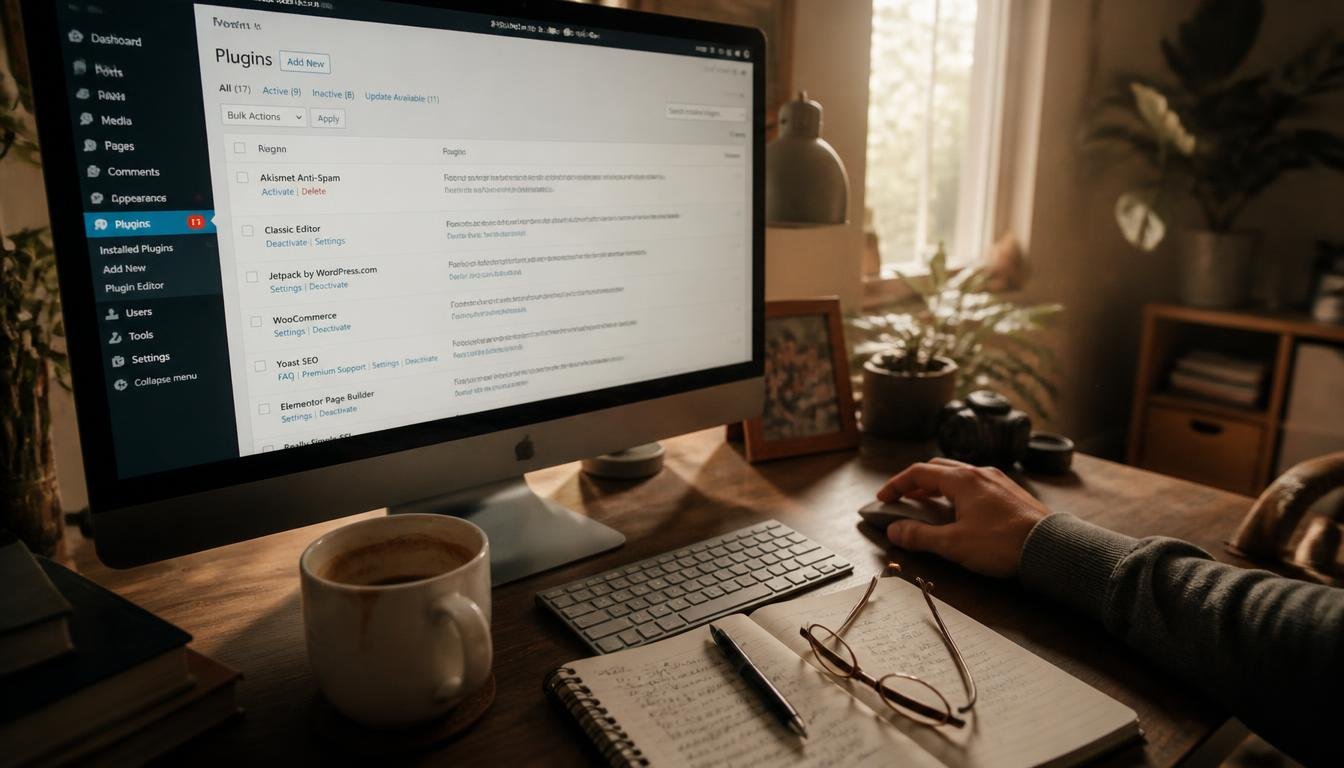
You logged in to publish, and WordPress plugin updates got there first. The post is written, the images are resized, you’ve got maybe ninety minutes before you need to be somewhere else. Then there’s the badge. Eleven plugins. The theme. A core release. And you run the same calculation you’ve run a hundred times, in about four seconds: update now and maybe lose the afternoon to a header that’s suddenly sitting forty pixels lower than it was, or leave it, publish, and carry the low hum of it around for another week.
You leave it. Of course you leave it. The post is ready now, and the update will still be there Thursday.
Except Thursday you’re writing. And the Thursday after that you’re behind. And eventually what makes you click isn’t a free afternoon, it’s a security notice, or that grey little line that says a plugin hasn’t been tested with your version of WordPress in two years. So you click everything at once, because going one at a time is its own evening, and you hold your breath while the page reloads.
That’s not laziness. That’s a reasonable response to a bad question.
Table of Contents
Why the WordPress Update Screen Can’t Tell You If a Plugin Is Safe
Look at what’s actually on that update row. A version number. A changelog written for someone who reads code. Maybe a line about compatibility with WordPress core.
Now look at the only question you actually have: does this version of this plugin get along with my page builder, my caching setup, my image optimizer, my consent banner, and the two plugins I installed in 2021 and can no longer explain?
Can you tell if a WordPress plugin update will break your site?
No. Nothing on the update screen can predict conflicts, because no developer knows what else runs on your site. Instead of predicting, make the update reversible: test a backup restore, use a staging site, update layout-related plugins one at a time, and check your homepage between each one.
Nothing on that screen addresses that. Nothing can. The developer of a forms plugin has no idea what else is running on your site. Your specific combination of twelve or twenty things might be unique on the internet. You’re the only person testing it, and you’re testing it in production, on the day you wanted to publish.
So the feeling isn’t irrational. You’re being asked to approve something you have no way to check. That’s not fear. That’s just seeing the situation clearly.
Why Bulk WordPress Plugin Updates Break Your Site and Teach You Nothing
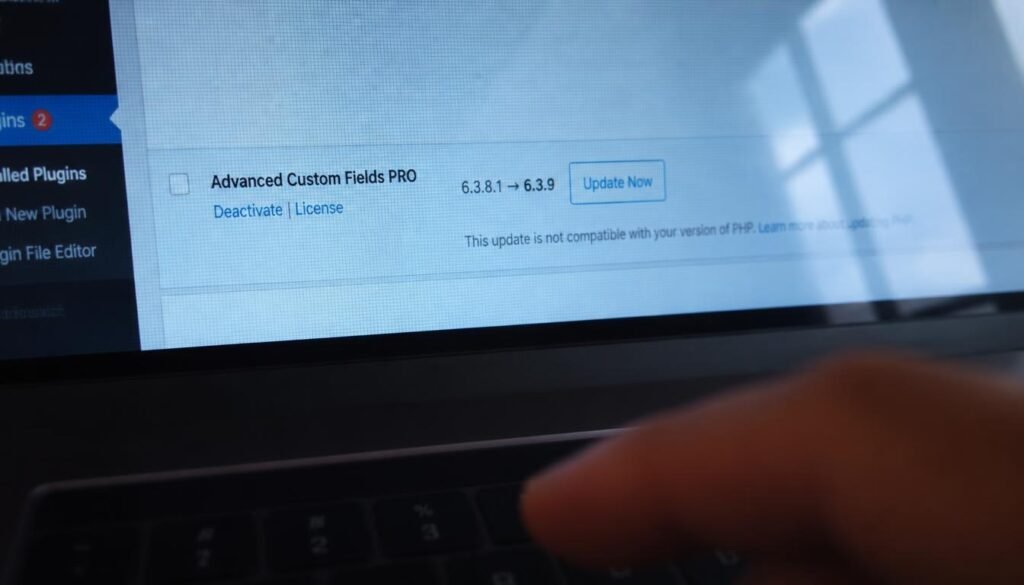
Here’s the thing most people never notice about their own method. When you finally update, you update everything at once. Eleven plugins, the theme, core — one click, one reload. And if something breaks, you now have eleven suspects and no way to narrow them down except by deactivating things one by one until the homepage comes back.
Which means every breakage teaches you nothing. You survive it, you fix it, and you end up knowing exactly as much as you did before. Next quarter the badge shows up again and you’re at the same starting line. Not because you’re slow to learn, but because the way you update destroys the evidence.
That’s the loop. You wait, so the batch gets bigger. The batch is bigger, so you can’t tell what broke. You can’t tell what broke, so you learn nothing. You learn nothing, so the next update is just as blind. So you wait again.
And it compounds in the boring direction too. Three months of skipped updates isn’t three months of nothing happening. A routine click turns into a much riskier one. Plugin versions jump several releases at a time. Each of those releases carried changes you never saw on its own.
The security side compounds the same way, and it isn’t theater. Patchstack’s State of WordPress Security in 2026 report logged 11,334 new vulnerabilities across the WordPress ecosystem in 2025 — a 42% jump year over year. Ninety-one percent of them were in plugins. Six were in WordPress core. Kinsta’s analysis of the same data makes the same point from a different angle: core is not the problem anymore. The part of your site you keep postponing is the part doing almost all of the bleeding.
“It’s been working fine, why would I touch it?” is true. It’s just measuring the wrong thing. The site is fine. The gap is growing.
You Don’t Need to Know Which Plugin Update Will Break Your Site
Most of the advice you’ve read assumes your problem is knowledge. Learn more about WordPress, read the changelogs, understand what the plugins do, and then you’ll know which update is safe.
That’s a false promise. Developers don’t know either. They can’t predict which combination will conflict any better than you can. Even WPBeginner, which manages one of the largest WordPress resource sites on the internet, describes learning this the hard way — broken layouts, missing editor functions, all from routine plugin updates.
What they have isn’t foresight. It’s a cheap way to be wrong. They run the update somewhere that isn’t the live site. If it breaks, they revert it. Four minutes. No panic. They aren’t making smarter calls than you. They’ve made their calls undoable. When you can undo it, the call barely matters.
That’s the whole gap. Not competence. Not information. Just the cost of being wrong.
Right now, for you, being wrong costs an evening, a possible panic, and the specific dread of wondering whether years of posts are recoverable. When being wrong is that expensive, hesitating is the correct move. Your instinct is sound. It’s the setup that’s broken.
How to Update WordPress Plugins Without Breaking Your Site
None of what follows requires you to understand what any plugin does internally. That’s the point. Nothing here needs a developer, a support retainer, or a single line of code — and if someone tells you it does, they’re selling you something you don’t need.
If you’re still assembling your setup, my recommended tools page covers the stack I’d build on today, and the Start Here roadmap puts it in order.
Test a WordPress backup restore before you need it
Once. An untested backup isn’t a backup, it’s a belief. Most people have never done a restore and don’t actually know if theirs works, or how long it takes, or whether it requires a support ticket.
The first time I ran a full restore on a site I’d been avoiding touching, it took about nine minutes, and I spent seven of them refusing to believe it was working. That was the end of the dread. Not because I’d learned anything about plugins — because I’d learned the price of the worst case.
If you’re choosing a backup tool, Patchstack ranks the major options by their own security track record rather than by feature count, which is the right way to pick one.
Find out on a calm Tuesday, not during an outage. After that, the badge is just a badge.
Check whether your host includes a WordPress staging site
A lot of plans include one-click staging and it’s sitting in a menu nobody opens. If yours has it, that’s the entire problem solved: push updates to the staging site, click through your homepage, one post, and the contact form, then do it live.
If it doesn’t, that’s a concrete, cheap reason to switch hosts — much better than the vague hope that a new one will make the site faster. (If speed is the actual bottleneck, that’s a different fix — I went through it in my WP Rocket review.)
Watch: how this looks in practice
A walkthrough of the staging-and-restore workflow described above — useful if you’d rather see the buttons than read about them.
Stop running plugin updates on publishing days
The reason you keep leaving them is that they show up in the exact window reserved for the thing you actually care about. Give updates their own twenty minutes on a day when nothing ships. You’ll click them, because there’s nothing to lose by clicking.
This is a scheduling problem more than a technical one, and it belongs in the same bucket as the rest of your publishing workflow — something I get into in what blogging actually is and how it works.
Split the plugin update batch into two groups, not eleven

Group one: WordPress core, security plugins, anything invisible on the page. Update those together. They rarely touch layout.
Group two: your page builder, your theme, your caching plugin, your image optimizer — anything that decides what the page looks like or how it’s delivered. Those go one at a time, with a look at the homepage in between. It takes a few extra minutes and it’s the only way you ever learn which one is the landmine.
Theme updates sit squarely in group two, and a lighter theme means fewer things in that group to begin with — more on that in my WordPress and Kadence guides.
Keep a three-line WordPress update log
Date. What you updated. What broke, if anything. That’s it.
After six months, you have the thing the dashboard has never given you: a record of how your particular site behaves. You’ll find it’s usually the same one or two plugins causing conflicts, every time. That’s worth knowing.
Delete the plugins you can’t explain
When you hit the plugin you can’t name the job of — the one you don’t remember installing — don’t make it a project. Just note it. Deactivate it on a quiet day and see if anything changes.
This one isn’t only about tidiness. Abandoned plugins are a real and growing risk: in 2024 alone, Patchstack’s researchers contributed to 1,614 vulnerable plugins and themes being pulled from WordPress.org, and most of those are still sitting installed on live sites, quietly never updating again. Every plugin you remove is one less variable in every future decision, and one less door you’ve forgotten you left open.
Tools Worth Owning for This
Disclosure: the links below are affiliate links. If you buy through one, DailyNetBlog may earn a commission at no extra cost to you. I only point at things that solve a bottleneck in the process above.
WordPress All-in-One For Dummies — Lisa Sabin-Wilson
The reference to keep on the shelf rather than read end to end. When you’ve deactivated the plugin you couldn’t name and something looks wrong, this is the book that tells you which part of the dashboard you’re actually looking at. Eight books in one, heavy on the admin and maintenance side that most blogging guides skip entirely.
Professional WordPress: Design and Development — Williams, Damstra & Stern
A level up, and worth it if you’ve decided you want to understand why plugins conflict instead of just routing around it. Written by working developers, with real explanations of how plugins hook into core — which is exactly the mechanism that breaks when two of them disagree.
A portable SSD for offsite backups
Cloud backups are fine until the account holding them is the account that got compromised. A 1–2TB portable drive costs less than one emergency support ticket and gives you a copy that lives in a drawer, not on someone else’s server. Pull one full backup onto it every quarter and the worst case stops being theoretical.
A pocket notebook for the update log
Slightly ridiculous, completely effective. A text file works, but a notebook sitting next to the keyboard gets written in. Three lines per session is the entire system.
Frequently Asked Questions About WordPress Plugin Updates
How often should I update WordPress plugins?
Every one to two weeks, on a scheduled day when you aren’t publishing. The exact frequency matters less than the regularity — short gaps mean small batches, and small batches mean you can tell what broke. Security patches should go on sooner than that, usually within a few days of release.
Can updating plugins break my WordPress site?
Yes, and it happens routinely. The usual causes are conflicts between two plugins, a plugin that no longer matches your theme, or a PHP version mismatch on your server. None of these are reasons to skip updates. They’re reasons to update where a failure costs you four minutes instead of an evening.
Should I update WordPress plugins all at once or one at a time?
Both, in two groups. Core, security plugins and anything invisible to visitors can go together safely. Your page builder, theme, caching plugin and image optimizer go one at a time, with a homepage check after each. That’s the only method that tells you which plugin is the problem.
What should I do if a plugin update breaks my site?
Restore your backup first, then investigate — not the other way around. If you don’t have a working restore, deactivate plugins via FTP or your host’s file manager, starting with whatever you updated last. This is exactly why testing a restore in advance matters so much.
Do I need a staging site to update WordPress plugins safely?
It’s the cleanest option, but no. A tested backup plus the two-group method gets you most of the way there. If your host already includes one-click staging, use it — you’re likely paying for it already.
Is it safe to enable automatic plugin updates?
For security plugins and small utilities with no effect on layout, usually yes. For your page builder, theme, or caching plugin, no — those are the ones that change what visitors see, and you want to be at the keyboard when they change. Turn automatic updates on for group one, leave them off for group two.
How many plugins is too many for a WordPress site?
There’s no magic number, but every plugin you can’t explain is a liability. If you can’t name what a plugin does for your site in one sentence, that’s your signal to test removing it. Fewer plugins means fewer possible conflicts and a smaller attack surface.
What Changes When Updating WordPress Plugins Stops Being Scary
You’re not going to become the person who looks at twelve pending WordPress plugin updates and knows which one is dangerous. Nobody is that person. Not the developer who wrote the plugin. Not the guy in the Facebook group with strong opinions about caching. You’re going to become the person for whom the answer stops mattering — because you can try it, look at the homepage, and put it back in one step if it’s wrong.
The dread was never really about plugins. It was about making an irreversible decision with no information, over and over, while a security warning ticked in the background. Take away the irreversible part and there’s nothing left underneath it. Just a small, boring click you make on a Tuesday, in between writing the things you actually started this for.
So do the one thing that makes the other five possible: go run a restore. Today, while nothing is broken and nobody is waiting on you. Time it with your phone. Then the next time that badge shows up, you’ll already know exactly what the worst case costs — and you’ll click it without thinking about it at all.