
Best Kadence Blocks Setup:Fast WordPress Pages Without the Page-Builder Bloat

The best Kadence Blocks setup can make WordPress pages load fast without the page-builder bloat you’ve come to expect. But let’s be honest with each other for a second. You’ve tried the “fast, flexible” page builders before. Elementor. Divi. Maybe Beaver Builder. They all made the same promise. They all left you with a slow, bloated site. Your Core Web Vitals tanked. Your pages loaded like they were dragging a piano uphill.
So when someone claims a Kadence Blocks setup will finally fix that, you roll your eyes. Fair. You’ve earned that skepticism. But give me four minutes. This isn’t another hype piece. It’s a setup guide built to survive your worst assumptions about block plugins.
Table of Contents
Why Your WordPress Page Builder Slows Down Your Site
Here’s the thing nobody selling page builders wants to admit. Most of them work the same broken way. They load every script and style on every page. It doesn’t matter if you use a feature or not. The code loads anyway. That’s why your site got slow. You didn’t do anything wrong. The tool did.
There’s a second problem too. Lock-in. Traditional builders wrap your content in shortcodes and custom markup. Try to switch away, and your posts turn into a wall of gibberish. You’re trapped. That’s not a bug to them. That’s the business model.
So your instinct to distrust the next “lightweight” claim? Keep it. It’s about to do real work.

What Makes the Best Kadence Blocks Setup Different
The best Kadence Blocks setup means configuring your global styles first, mastering a handful of core blocks, and letting Kadence’s intelligent asset loading ship only the code each page needs. It runs inside the native WordPress block editor, so you get fast pages and consistent design with no shortcode lock-in and no page-builder bloat.
Kadence Blocks isn’t a separate builder stuck on top of WordPress. It works inside the same block editor you already use. That one fact changes everything. You’re not fighting your site. You’re upgrading it.
Here’s why that matters for a burned skeptic like you:
- No shortcode lock-in. Your content stays as clean WordPress blocks.
- No second interface to learn. You edit where you already write.
- No abandoned-plugin panic. If you ever stop using it, your text stays readable.
According to its public WordPress.org listing, Kadence Blocks powers over 600,000 active sites — and it doesn’t replace WordPress. It makes WordPress do what you wanted all along. If you’re still piecing your stack together, the rest of these WordPress and Kadence tutorials cover what goes around it.
I’ve rebuilt client sites on Kadence after Elementor left them failing Core Web Vitals, and the fix held every time. There were no shortcodes to unwind and nothing bolted on to drag the page down.
But the plugin alone isn’t the win. The setup is. A lazy install still leaves speed on the table. Let’s fix that.
How to Set Kadence Global Styles Before You Build
This is the step everyone skips. It’s also the step that separates a pro site from a mess.
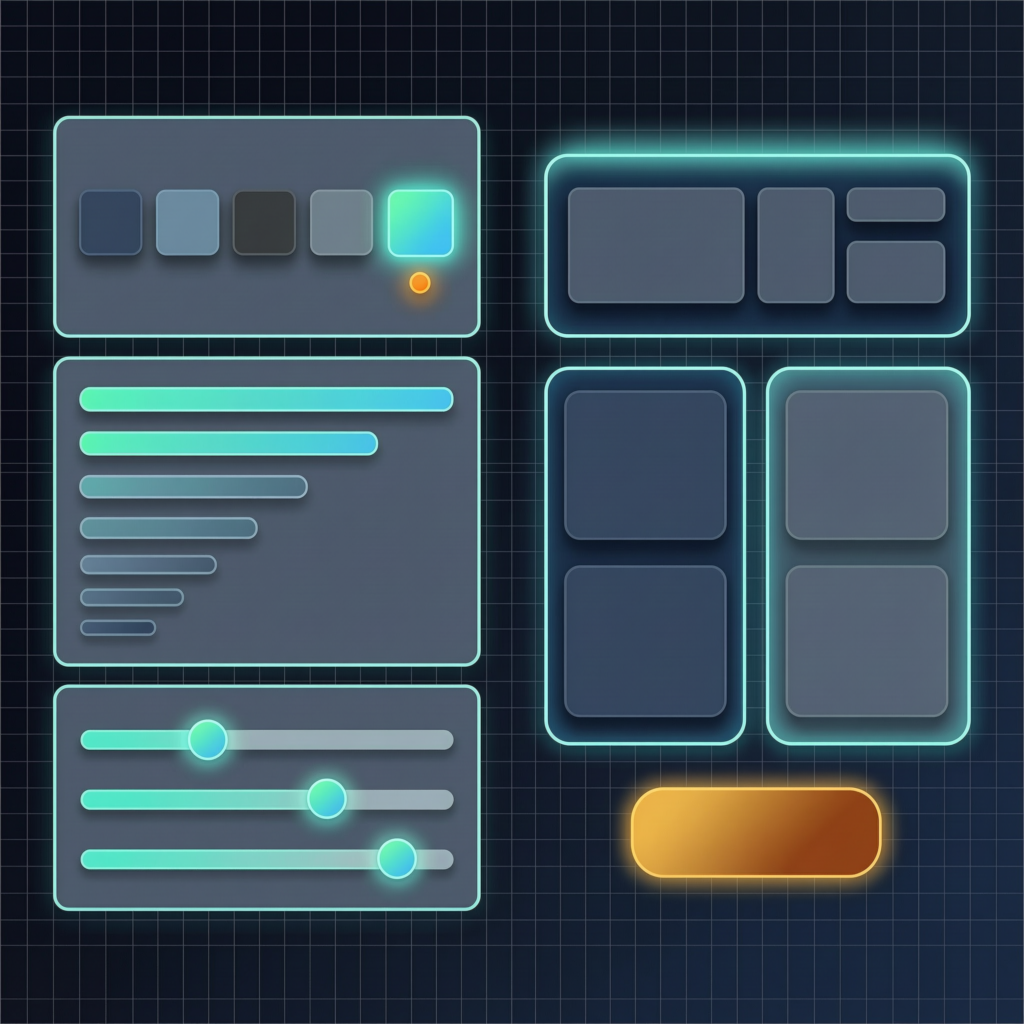
Before you touch a single page, set your global styles. Your colors. Your fonts. Your spacing rules. Do it once, up front. Then every block you add pulls from those settings automatically.
Here’s what to lock in first:
- Global colors. Pick your brand palette. Kadence saves it as reusable swatches.
- Typography. Set your heading and body fonts, sizes, and line height.
- Default spacing. Decide your standard padding and margins.
Why does this matter so much? Consistency. Every button, every heading, every section now matches. Change your brand color later? Update it in one place. It cascades across the whole site instantly.
No page-by-page hunting. No mismatched buttons. That’s the quiet power of a real Kadence Blocks setup.
The Best Kadence Blocks for Building Fast Pages
You don’t need all 20-plus free blocks on day one. You need a handful that cover 90% of any page. Master these first:
- Row Layout. The backbone. It builds your columns and sections with full control.
- Advanced Text. Headings and paragraphs with per-device sizing baked in.
- Buttons. Styled call-to-action buttons that match your global colors.
- Info Box. Image, text, and a button in one tidy, clickable card.
- Accordion. Perfect for FAQs. Great for your Core Web Vitals too.
- Table of Contents. Auto-builds from your headings. Readers love it.
- Form. A real contact form, no separate plugin needed.
Notice something? Each block replaces a plugin you’d otherwise install. That’s fewer plugins. Fewer conflicts. Fewer things to update and break.
For the skeptic counting plugin bloat, this is the whole argument. One tool, less clutter, faster site.
How Kadence Intelligent Loading Improves Core Web Vitals
Remember the core problem with old builders? They load everything, everywhere. Kadence flips that completely. It only loads the code a page actually uses. And it does this automatically.
Here’s what that means in plain English. The CSS and JavaScript for a block only load when that block is on the page. No accordion on your homepage? The accordion code never loads there. Simple. Smart.
This is the single biggest reason Kadence sites stay fast. Your pages ship less code. Your Core Web Vitals scores climb. In a straight Kadence vs Elementor speed test, this asset-based loading is exactly where Kadence pulls ahead.
You don’t need a caching wizard’s brain to get this. It’s already on. You just stop sabotaging it. Keep your setup lean. Don’t stack ten redundant plugins on top. Let intelligent loading do its job.
You can prove it yourself in Google’s PageSpeed Insights — the same tool Google uses to score your Core Web Vitals. That’s how a “lightweight” claim finally holds up under a stopwatch. Speed is only half the ranking battle, though — the fundamentals in this blog SEO guide for beginners handle the other half.
Kadence Blocks Free vs Pro: What Your Setup Needs
Let’s kill the upsell suspicion right now. You do not need Pro to build a great site. The free version is genuinely powerful. For most blogs and small business pages, it’s more than enough.
So who actually needs Pro? Be honest about your goals:
- You run a simple blog or brochure site. Free covers you. Don’t spend a dime yet.
- You want dynamic content or advanced forms. Pro earns its keep.
- You build client sites for a living. Pro’s design library and premium blocks pay for themselves fast.
Pro unlocks things like dynamic content, video popups, sliders, and scroll animations. It also opens a huge library of pre-built patterns. That library is the real time-saver for agencies. You drop in a full section, then restyle it in minutes.
But start free. Prove it works on your own site first. Upgrade only when a real need shows up. That’s a Kadence Blocks setup built on trust, not FOMO.
Kadence AI Design: Build Sections From a Prompt
Here’s a feature that surprises the skeptics. Kadence now includes AI-powered design tools. You can generate whole sections, pages, or templates from a prompt. It pairs well with a couple of proven AI tools for bloggers if you want to speed up the rest of your workflow too.
Here’s the clever part. The AI uses your global styles too. So the results don’t look like generic AI junk. They look like your site.
Free users even get credits to test it. You can try it before you commit to anything.
Is it magic? No. But it turns a blank page into a real starting point in seconds — and when you flesh that draft out, this walkthrough on drafting long-form posts with Claude without sounding robotic keeps the copy human. For anyone who dreads the empty screen, that’s a genuine gift. Less staring. More building.
Your 15-Minute Kadence Blocks Setup Checklist
Enough theory. Here’s the exact order to follow. Do this today. (Just launching your site? Get the foundation right first with this guide to starting a blog that makes money.)
- Install the free plugin. Grab Kadence Blocks from the WordPress repository.
- Set global colors. Add your brand palette as saved swatches.
- Set typography. Choose heading and body fonts and sizes.
- Set default spacing. Lock in your standard padding and margins.
- Build one section. Use a Row Layout block. Add two columns.
- Add your core blocks. Drop in Advanced Text, a Button, and an Info Box.
- Add a Table of Contents. Watch it auto-build from your headings.
- Check your speed. Run the page through a Core Web Vitals test.
That’s it. Fifteen minutes. You now have a fast, consistent, plugin-light foundation. No shortcode trap. No mystery bloat. No second interface to babysit.
Prefer to watch the whole thing built before you dive in? This beginner walkthrough covers a full Kadence setup from start to finish:
Video: “The Ultimate Kadence Guide for Beginners” by CliftonWP — the walkthrough featured on the official Kadence Blocks plugin page.
Why the Best Kadence Blocks Setup Wins
Look — the trade-off you were sold was always a lie. Speed or flexibility, pick one. That’s what bloated tools tell you so you’ll forgive them for being slow. The best Kadence Blocks setup throws that trade-off out. Set your globals, use the core blocks, and let intelligent loading keep the code lean. It lives inside WordPress, not on top of it, so nothing’s hiding in your posts waiting to trap you later.
So stop reading about it. Install the free version right now, set your global styles, and build one page before you close this tab. Then run the speed test and let the numbers do the arguing the sales pitch never could.