Proven Ways to Speed Up a Slow Kadence WordPress Site

Here’s something that sounds backward: the fastest way to speed up a slow Kadence WordPress site is usually to stop blaming Kadence. Your scores are red, your pages crawl, and you’re watching visitors bounce before your hero image even paints. That’s a real problem, and it quietly costs you rankings and revenue every single day it sits unfixed. But the theme is almost never the villain here. I’ve rescued dozens of sluggish Kadence blogs, and in nearly every case the fix was a repeatable sequence of moves anyone can run. Follow this blueprint and you won’t just have a faster site, you’ll finally understand why it’s fast, which means it stays that way.
Table of Contents
- Why Your Kadence Site Feels Slow (When Kadence Isn’t)
- Diagnosing the Real Bottleneck Before You Touch a Setting
- Caching: Your Single Biggest Speed Win
- Images, Fonts, and Render-Blocking Assets
- Advanced Layer: Database, PHP, and Hosting Truths
- My Repeatable Kadence Speed Workflow
- Frequently Asked Questions
- My Top Recommended Gear
Why Your Kadence Site Feels Slow (When Kadence Isn’t)
A slow Kadence WordPress site is almost always caused by what you added on top of the theme, not the theme itself. Kadence ships lean code, so the usual culprits are uncompressed images, heavy builder sections, render-blocking scripts, slow hosting, and missing caching. Fix those five and your speed scores climb fast.
Let me bust the biggest myth in this whole conversation. Kadence is one of the lightest, best-coded themes in the WordPress ecosystem. It loads conditional assets, ships minimal CSS, and doesn’t drag jQuery around like a suitcase full of bricks. So when a Kadence site feels sluggish, the theme is taking the blame for a crime it didn’t commit.
The real weight gets added later. A hero section stuffed with three background videos. A 2 MB PNG that should have been a 90 KB WebP. A social-sharing plugin loading its scripts on every page, including the ones with no share buttons. Each choice feels small in the moment, and together they bury a genuinely fast foundation. If you want a refresher on how the platform fits together underneath all this, my walkthrough on how to use WordPress the right way is a solid place to start before you tinker with performance.
Is Kadence actually a slow theme?
No, and the data backs that up. In head-to-head tests, a clean Kadence install routinely posts a smaller page weight and faster first paint than most popular multipurpose themes. The moment your numbers go red, look at your content and your stack first. The theme is the last suspect, not the first.
Diagnosing the Real Bottleneck Before You Touch a Setting
Would you let a mechanic replace your engine before they’d even popped the hood? Then why do so many people start deleting plugins at random the second PageSpeed shows a low number? Guessing is the slowest way to get fast, ngl.
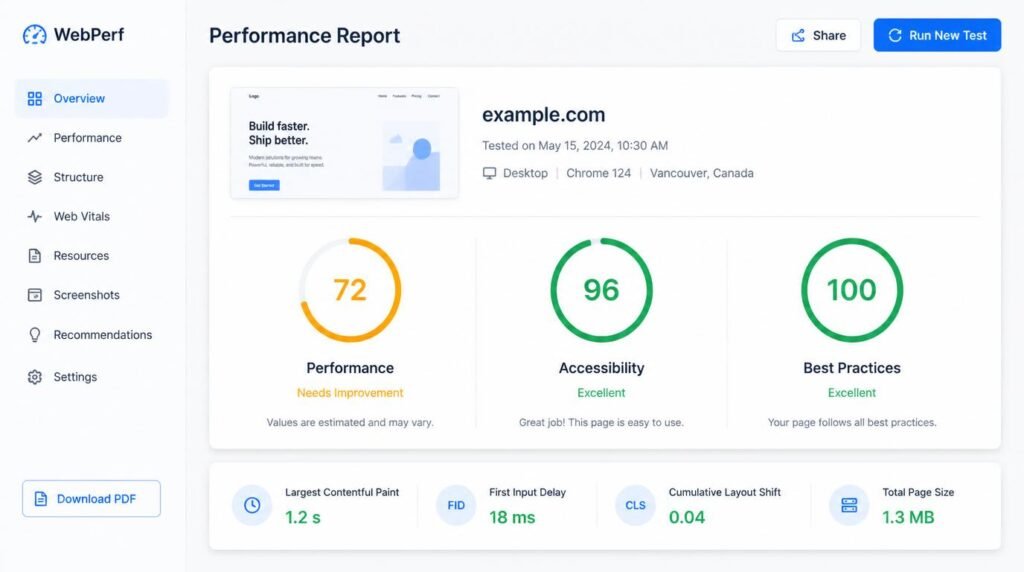
Measurement comes first, always. Run your slowest page through Google PageSpeed Insights and a second tool like GTmetrix so you’re not trusting a single reading. Then read the three metrics that actually decide your Core Web Vitals: Largest Contentful Paint (how fast the main content shows), Interaction to Next Paint (how snappy the page feels when tapped), and Cumulative Layout Shift (how much things jump around while loading).
Here’s an insider note that trips up even experienced bloggers. Interaction to Next Paint quietly replaced First Input Delay as a Core Web Vital back in March 2024. So if a tutorial you’re reading is still obsessing over FID, it’s out of date, and you might be optimizing for a metric Google retired. INP is stricter and it punishes heavy JavaScript, which is exactly the kind of thing an overloaded plugin stack produces.
Which tool should I use to test my site speed?
Use at least two. PageSpeed Insights gives you Google’s own field and lab data, which is what actually feeds search. GTmetrix shows you a waterfall chart so you can spot the exact file that stalls the load. Test the same page three times, ignore the first cold run, and take the median. One-off numbers lie.
Caching: Your Single Biggest Speed Win
If you only had time for one fix, this would be it. Caching is the difference between WordPress rebuilding your page from scratch on every visit and simply handing over a ready-made copy. TBH, most “my Kadence site is slow” panic attacks end the moment a proper cache goes live.
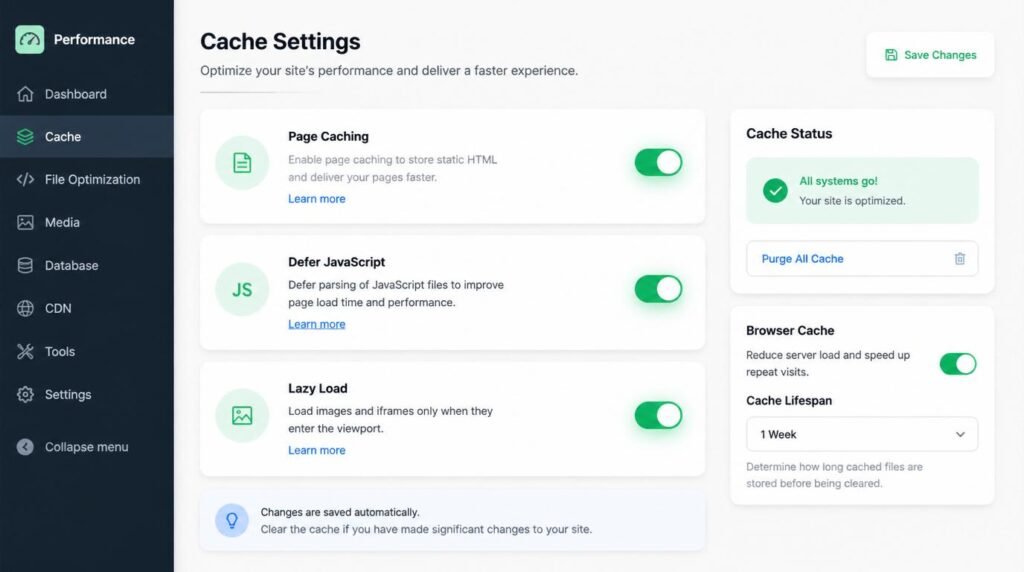
There are two layers worth knowing. Page caching stores the finished HTML so the server skips all the PHP and database work. Object caching stores the results of repeated database queries so dynamic parts load faster too. On a content blog, page caching alone often shaves a second or more off your load time. WP Rocket, LiteSpeed Cache, and your host’s built-in cache all handle this well; pick one and commit.
The trap I see constantly: two page caches fighting each other. If your managed host already caches at the server level and you install a plugin that does the same thing, you get stale pages, weird layout glitches, and sometimes a slower result. One page cache. That’s the rule.
Do I really need a caching plugin with good hosting?
Maybe not for page caching, if your host does it at the server level already. But a good optimization plugin still earns its place by handling image delivery, deferring scripts, and cleaning your database. Read your host’s documentation, see what they cover, and only fill the gaps they leave open.
Images, Fonts, and Render-Blocking Assets
Ever wonder why your page still crawls even after you installed a caching plugin and felt like a genius for a day? Almost always, it’s the assets. Images and fonts are the quiet saboteurs of Kadence performance, and they hide in plain sight.
Start with images, because they’re usually your heaviest single element and therefore your Largest Contentful Paint. Serve modern formats like WebP or AVIF, compress everything, and — this is the part people skip — actually size your images to the container they sit in. Uploading a 3000-pixel-wide photo into a 700-pixel column means the browser downloads and shrinks it on every visit, wasting bandwidth for nothing. Lazy-load anything below the fold so the browser only fetches what the reader can see.
Fonts are the second offender. Every custom web font is a file the browser must fetch before it can paint text cleanly. Host your fonts locally instead of calling them from a third party, preload only the one or two weights you truly use, and set font-display to swap so text shows instantly instead of hanging on a blank screen. Kadence gives you font controls right in the customizer, so there’s no excuse to load six weights you never touch.
Then there’s the JavaScript problem. Render-blocking scripts freeze the page while they load. Defer the non-critical ones and delay third-party junk (chat widgets, analytics, ad scripts) until after the reader interacts. This single change is often what rescues a failing INP score.
Why are my images still slowing things down after compression?
Because compression isn’t the same as correct sizing. A perfectly compressed image that’s four times wider than its display container is still overkill. Set proper dimensions, serve responsive sizes, and let WordPress deliver the right version per device. That’s the piece most guides forget to mention.
How do I stop Google Fonts from blocking my page?
Download the fonts, host them on your own server, and preload the critical weight. When the font lives on your domain, there’s no extra connection to a third-party server, no DNS lookup, and no external request standing between your reader and readable text.
Expert Commentary: Watch this one specifically for the live before-and-after PageSpeed run — seeing a real waterfall chart change in real time teaches the diagnosis mindset far better than any static screenshot, and it shows you which toggle moved which metric.
Advanced Layer: Database, PHP, and Hosting Truths
This is where most articles quietly tap out. They’ll tell you to install a caching plugin and call it a day. But the readers who genuinely want a fast Kadence site need to go one level deeper, into the parts of the stack the plugin can’t reach.
Start with PHP, the language WordPress actually runs on. Older versions are slower and, worse, no longer receive security patches. Check the official PHP supported versions list and make sure your host has you on a current release. Jumping from an ancient PHP version to a modern one can cut your server response time dramatically, and it’s a one-click change on most hosts.
Next, your database. Over months, WordPress accumulates post revisions, expired transients, spam comment leftovers, and orphaned metadata. That bloat slows every query. Clean it periodically with a trusted optimization tool, and cap your stored revisions so a single popular post isn’t dragging fifty saved drafts behind it.
Then the honest hosting conversation. Cheap shared hosting packs hundreds of sites onto one server, so your speed depends on strangers’ traffic spikes. If your time to first byte is consistently high no matter what you optimize, the server is your ceiling, and no plugin will break through it. Quality hosting is the least glamorous and most effective upgrade you can make. Finally, trim the fat: audit every plugin, and if you’re running Kadence, disable the theme modules you never use so their code never loads. I go deeper on why Kadence handles this so gracefully in my full Kadence theme review for bloggers.

Should I switch hosting to fix speed?
Only after you’ve optimized everything you control and your time to first byte is still slow. If a lean, cached, image-optimized page still responds sluggishly at the server level, the host is the bottleneck. At that point, moving to faster hosting does more than any plugin ever could.
My Repeatable Kadence Speed Workflow
Here’s the exact sequence I follow, in order, every time. The order matters, because it stops you from optimizing something that a later step would have fixed for free.
- Measure first. Run three lab tests on your slowest page. Write down LCP, INP, and CLS before you change a thing, so you can prove the win later.
- Fix the foundation. Confirm modern PHP and a healthy server response time. Sort hosting before software.
- Turn on caching. Enable one page cache plus object caching, then retest. This is usually the biggest single jump.
- Fix images and fonts. Compress, correctly size, serve modern formats, lazy-load, and host fonts locally.
- Defer and clean scripts. Defer non-critical JavaScript, delay third-party widgets, and remove unused CSS.
- Retest and lock it in. Measure again from a clean session, document the numbers, and set a monthly recheck reminder.
Run that top to bottom and you’ll rarely need step six’s panic button. The whole point is that it’s repeatable: next time a page feels slow, you don’t guess, you just run the list. That shift, from anxious guessing to calm diagnosis, is the real transformation here. 🙂
Frequently Asked Questions
Why is my Kadence site slow even though Kadence is a lightweight theme?
Kadence ships almost no bloat, so slowness usually comes from what you stacked on top of it: heavy builder sections, uncompressed images, too many plugins, slow hosting, or missing caching. Fix those and the theme’s speed advantage finally shows up in your scores.
Do I need a caching plugin if I’m on managed WordPress hosting?
Often no, because managed hosts run server-level page caching that a plugin would only duplicate. Check your host’s docs first. If they cache pages but nothing else, an add-on for object caching, image handling, and script optimization can still help. Never run two full page caches at once.
How fast should a Kadence site load?
Aim for Largest Contentful Paint under 2.5 seconds, Interaction to Next Paint under 200 milliseconds, and Cumulative Layout Shift under 0.1 on real mobile connections. A tuned Kadence blog on decent hosting hits those numbers comfortably.
Will too many plugins slow down my Kadence site?
It’s not the count that matters, it’s the weight. One badly built plugin loading scripts on every page hurts more than ten lightweight ones. Audit what each plugin loads, then delete anything you no longer use rather than just deactivating it.
Does Kadence work with WP Rocket and LiteSpeed Cache?
Yes. Kadence plays well with both WP Rocket and LiteSpeed Cache, plus Perfmatters for fine control. Pick one caching plugin, enable defer or delay for JavaScript, test each toggle, and roll back anything that visually breaks your layout.
My Top Recommended Gear
- Web Performance in Action (Jeremy Wagner) — The clearest explanation of image, font, and script optimization I’ve found; it turns the vague idea of “make it faster” into concrete techniques.
- High Performance MySQL — If you ever want to understand why database cleanup matters, this demystifies the queries WordPress runs behind the scenes.
- Professional WordPress: Design and Development — A solid reference for understanding how WordPress loads assets, which makes every optimization decision easier to reason about.
Disclaimer: This post contains affiliate links. As an Amazon Associate, I may earn a commission from qualifying purchases at no additional cost to you. I only recommend products I’ve personally tested or rigorously researched.