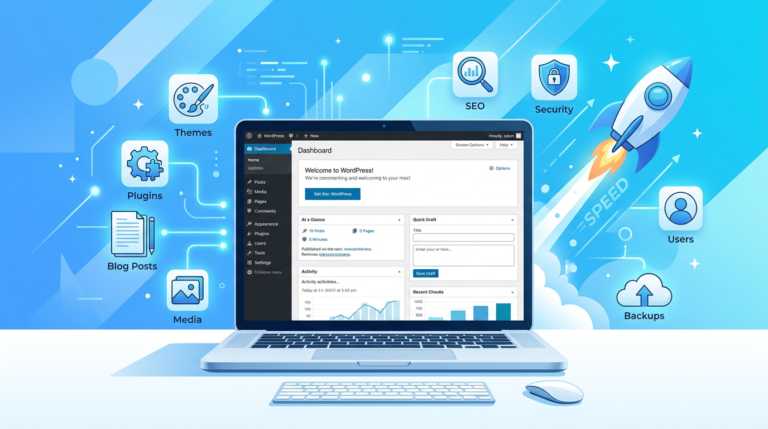
WordPress Backup Checklist: Protect Your Blog in 7 Steps

Your blog loads perfectly today. That tells you nothing about whether you could recover it tomorrow. A failed update can affect the site; a lost laptop can take the unpublished work you never uploaded.
This WordPress backup checklist covers both problems: save a recoverable copy of your website, protect your drafts and original images separately, keep a copy outside your hosting account, and rehearse recovery before you need it.
You do not need to buy a new stack of tools first. Start by checking what your current host already provides and what you could actually restore.
Table of Contents
1. Decide what you need to recover
A blogger has two collections to protect: the published website and the working material behind it. They overlap, but neither automatically contains everything in the other.
Your website includes articles, comments, uploaded images, settings, themes, and plugins. Your working collection might include interview notes, unpublished drafts, original photographs, editable graphics, and downloadable products.
Write down where each collection lives. A document saved only on your laptop is outside your hosting backup. An image compressed before upload may have a higher-quality original elsewhere.
For the website itself, request a backup that includes both the database and the required files. WordPress’s backup handbook explains why both parts are needed for a typical full restoration. Check the package’s exclusions rather than assuming that “complete” covers custom folders.
| Collection | What to preserve | What to verify |
|---|---|---|
| Live WordPress site | Database and required site files | A matching backup set restores into a working site |
| Writing workspace | Drafts, research notes, source records | You can recover an earlier document version |
| Creative assets | Original photos and editable designs | The originals open independently of WordPress |
If you are still organizing your first site, use the beginner blogging roadmap to place this routine alongside setup and publishing.

2. Separate a content export from a site backup
The Tools → Export screen is useful, but its download is easy to misunderstand. WordPress documents the WXR export as an XML format carrying content such as posts, pages, comments, custom fields, categories, and tags.
That makes it a useful extra content copy. It does not make it a full installation backup.
On WordPress.com, the distinction is explicit: its content export guidance says the export contains media references rather than the actual image files and excludes themes, design customizations, and plugins.
If an import needs to retrieve media from the original site, keep that source available until the transfer is verified. Do not retire hosting simply because an XML file downloaded successfully.
Ask your host four specific questions
- Does my plan back up the database and all required files?
- How frequently are copies made, and how long are older versions kept?
- Can I download an independent copy?
- How do I recover if I cannot reach my WordPress dashboard?
Save the answers with the recovery instructions. A backup service you cannot access during an outage leaves an important gap.
3. Set a schedule around the work you could lose
Choose frequency by asking a practical question: how much work would you be willing to recreate?
If you edit every day, a weekly copy could leave too much missing. If the site changes rarely, frequent identical copies may add storage without much benefit. Comments, orders, and member activity also count as changes, even when you publish nothing.
As a starting plan for a regularly updated editorial blog, consider daily website backups, protection for writing files during active work, and an extra backup before significant site changes. Adjust those choices to your actual activity and your provider’s capabilities.
Frequency and retention solve different problems
Frequency determines how recent your recovery point is. Retention determines how far back you can go. A fresh backup can faithfully preserve a problem you have not noticed yet.
For example, keeping several daily copies plus selected older copies can give you more options than repeatedly replacing one file. Check storage limits before choosing a retention period, and verify that the service really retains the versions you expect.
Before changing the design after reading our Kadence theme review for bloggers, create a current recovery point. Include custom code and child-theme files if you use them.
4. Keep a copy outside the hosting account
A downloadable backup stored only beside the live website depends on the same hosting access. Keep an additional copy in a separate destination you control.
For a small blog, that might mean an automated remote backup plus a periodically downloaded copy on an external drive. Confirm the remote upload finished; a local backup job can succeed while the transfer fails.
A cloud-synced working folder needs another check: does it retain deleted files and earlier versions? A mirror that quickly copies accidental deletion is useful for synchronization, but insufficient as your only recovery route.
Protect backup archives because they can contain private information and configuration secrets. Restrict access, use supported encryption, and keep recovery keys in a secure location you can reach independently.
CISA’s ransomware guidance recommends offline, encrypted backups and regular recovery testing. For an external-drive copy, eject and disconnect the drive after the transfer and verification are complete.
5. Choose storage for the job, not the headline speed
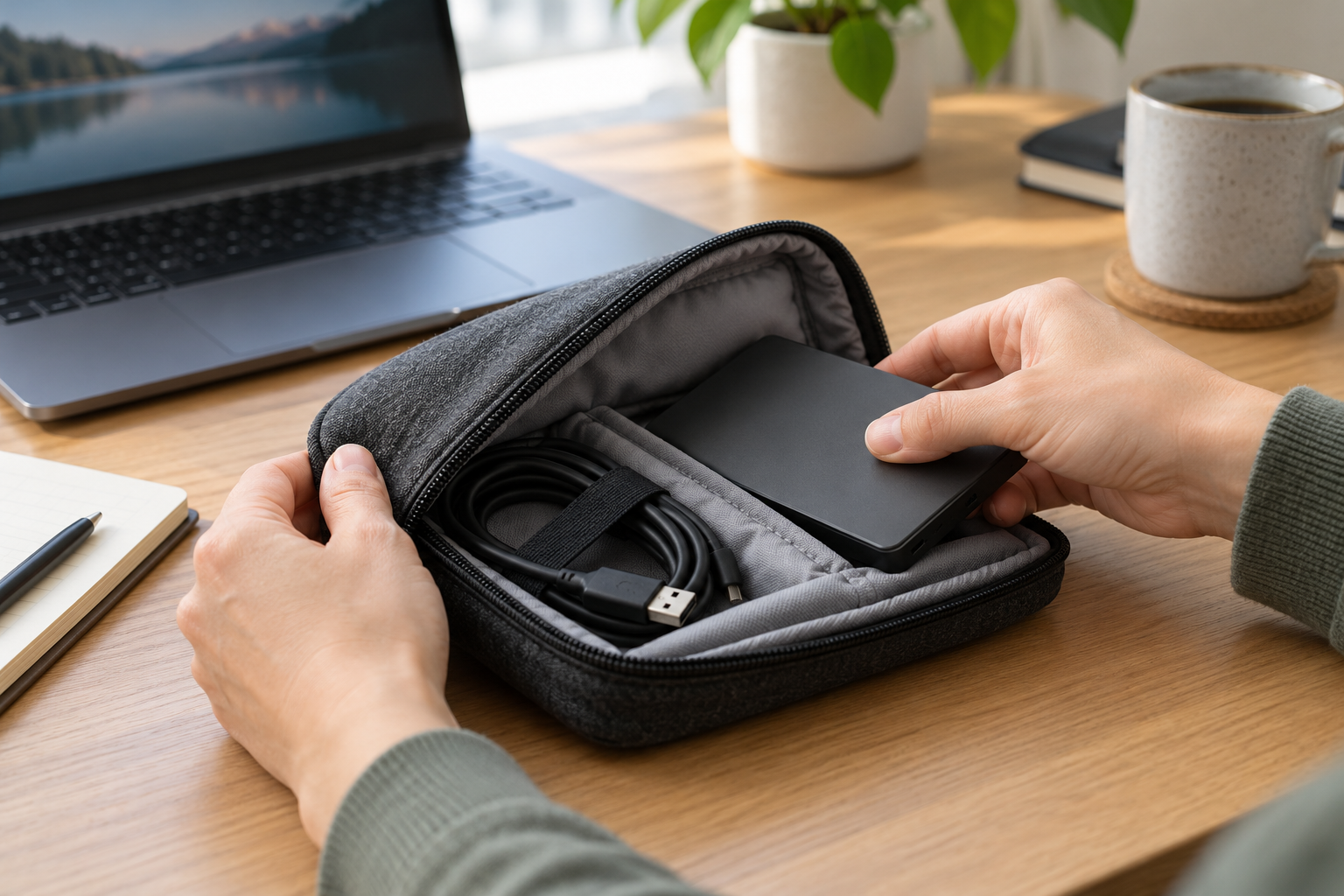
An external drive is a destination for backup files. It does not automatically create a website backup or configure a recovery process. Use suitable backup software or your host’s export procedure to produce the files first.
Check the size of one full backup, how many versions you intend to retain, and how quickly your original-image library is growing. Leave room for future copies and recovery work.
This article contains affiliate links. As an Amazon Associate I earn from qualifying purchases.
Samsung T7 Portable SSD, 1TB
The Samsung T7 1TB, model MU-PC1T0T/AM, is an option for bloggers who regularly move working assets and downloadable backup sets between computers. Its compact SSD format suits a portable workflow.
Buying consideration: check your computer’s ports, cable compatibility, and required capacity. One portable SSD is still one failure point; keeping your only copy on it defeats the purpose. This is a workflow-based suggestion, not a hands-on test result.
View the Samsung T7 1TB on Amazon.
WD Elements Portable External Hard Drive, 2TB
The WD Elements 2TB, model WDBU6Y0020BBK-WESN, is an alternative for bloggers who want a separate hard-drive destination for archived backup sets and creative files.
Buying consideration: a mechanical drive needs careful handling. Verify operating-system formatting requirements before use, especially when moving between Windows and Mac; reformatting erases existing data. Compare current offers yourself rather than assuming this drive is always cheaper than an SSD.
View the WD Elements 2TB on Amazon.
You do not need both products. An existing drive with sufficient capacity may already fit. For the wider software stack, review our recommended blogging tools before adding another subscription.
6. Create one backup and verify its destination
Use your current host’s documented process or an appropriate backup tool. In either case, check the selected components, destination, completion report, and recovery instructions.
If you already use UpdraftPlus, its official backup tutorial explains scheduling, remote destinations, and creating a backup. Available features differ between versions, so check the instructions for your installation.
- Create an on-demand backup that includes the components your site needs.
- Wait for the job and any remote transfer to finish.
- Open the destination independently and confirm the expected files are there.
- Record the date, included components, and any warnings.
- Keep the files belonging to the same backup set together.
For a visual introduction, Learn WordPress’s “How to backup your site” lesson demonstrates host-based and plugin-based methods. It helps explain the difference between files and database backups; your provider’s screens may differ.
7. Rehearse recovery on a separate copy
A completion notice confirms a backup job ran. A recovery rehearsal checks whether the result is useful.
Ask your host to restore a selected set into a private test environment, or follow your tool’s supported staging procedure. Keep the test separate from the live site. Disable real outgoing emails, payments, and automated integrations before exercising its features.
Check a recent article, an older article, full-size images, navigation, and an important download. Confirm administrator access works and that pages use the test copy’s media rather than quietly loading everything from production.
Use our blog SEO fundamentals guide to identify important articles and internal paths to include in the review. Record the recovery point, the time taken, and any missing pieces. If the text returns but images or forms fail, document a partial recovery and fix the gap before relying on that method.
Make the rehearsal specific to your blog
Choose examples that expose different kinds of failure. A photo-heavy tutorial checks uploads; a downloadable worksheet checks file delivery; an article with a table checks formatting. Include something recently edited and something older than your newest backup.
Suppose you published a guide on Monday and revised its images on Tuesday. A Monday recovery point should contain the guide, but it cannot contain Tuesday’s changes. Write down that expected difference before testing so you can distinguish normal data loss from an incomplete archive.
Check your working files separately. Recover an earlier draft into a temporary location, open an original photograph, and confirm that an editable design still has the layers or source elements you need. A flattened export can preserve the finished appearance while leaving future editing difficult.
If you discover a missing item, identify its actual storage location and add it to the right backup routine. Repeating the same website backup will not protect a forgotten folder on your laptop.
After the rehearsal, keep a brief record of what passed and what needs attention. Before any real recovery, decide how you will preserve new material created after the chosen recovery point. Restoring an older site can replace later work; ask your host about selective recovery when only one item is missing.

Keep a short recovery note
List the backup location, who can access it, the restoration instructions, your host’s support route, and the last successful test date. Store account credentials securely rather than pasting passwords into the note.
Rehearse again after significant hosting or backup-tool changes. Set a recurring review that matches how much the site changes; a quiet blog and a busy membership site need different routines.
Your WordPress backup checklist for this week
Inventory your site and working assets, check the backup scope, choose a tolerable recovery point, retain older versions, verify an independent copy, and test a restoration.
Start with one concrete action today: locate your newest backup and ask how you would restore it without access to the live dashboard. Any uncertainty in that answer is the next problem to solve.
Frequently asked questions
Is WordPress Tools → Export a complete backup?
No. The WXR export preserves supported content records. Use a backup process covering the database and required site files for full website recovery.
How often should I back up my WordPress blog?
Match the schedule to how much recent work you can lose. Daily backups can suit an actively edited blog; more frequent activity may require shorter intervals. Create an extra recovery point before major changes.
Are my hosting provider’s backups enough?
Check their scope, retention, download options, and restoration process. Keep an independent copy so recovery does not depend entirely on access to one hosting account.
Does a website backup include my unpublished drafts?
Saved WordPress drafts may be included in a database backup. Documents, research notes, and original images stored only on your computer or another service need their own protection.
Can I keep WordPress backups on an external drive?
Yes. Download the complete backup set using your host or tool, verify the copy, and protect it appropriately. The drive supplements your recovery plan; it does not create website backups by itself.
How do I know a backup actually works?
Restore it into a separate test environment and verify content, media, access, and important functions. Record problems and resolve them before treating the recovery method as dependable.