
WordPress Passkeys: A 7-Step Setup and Recovery Plan

If you are the only person who can access your blog, changing how you sign in needs a recovery plan. WordPress passkeys can reduce reliance on passwords, but the sensible first move is to register and test an alternative way back in before making passkeys compulsory. Start with optional access, prove that a backup works, and only then consider removing password login.
This guide is for owners of self-hosted WordPress blogs who want practical login protection without creating an avoidable lockout. It separates the credential stored on your device from the WordPress feature that accepts it. It also explains when a hardware key helps, when your existing devices may be sufficient, and what to check before changing a working login setup.
Table of Contents
What WordPress passkeys change—and what they leave exposed
A passkey uses a cryptographic key pair rather than a reusable password. Your authenticator keeps the private key; the website holds the public key used to verify a sign-in. An authenticator can be a device, a compatible password manager, or a physical security key. A fingerprint or device PIN may unlock it, but the website does not need your fingerprint to authenticate you. See MDN’s explanation of passkey authentication for the underlying distinction.
The important benefit is that credentials are scoped to the legitimate website. A convincing lookalike domain cannot simply collect the same passkey as if it were a password. That does not make the entire publishing operation immune to compromise. A stolen authenticated session, an unsafe extension, or an exposed hosting account creates a different problem. Treat login protection as one control within a wider maintenance routine.
For a solo blogger, the immediate decision is operational: can you still reach your dashboard when your everyday phone is unavailable? Convenience is useful, but it should survive a broken screen, a replaced laptop, or a forgotten device. Make that question the acceptance test for the setup, rather than counting how quickly the first sign-in completes.

Choose where your passkeys will live
The FIDO Alliance’s passkey guidance distinguishes synced credentials from device-bound credentials. Synced passkeys can be available across devices through a provider; device-bound passkeys remain with their authenticator. Neither label alone tells you whether your recovery arrangement is adequate. The provider account, devices you actually own, and the login implementation all matter.
Synced passkeys: convenient, with a provider dependency
A compatible password manager or platform account can make everyday access easier when you alternate between a laptop and phone. Before choosing this route, review how you recover that provider account. Ask what happens if the phone used to approve recovery is the phone you have just lost. Record which account holds the credential so that you do not search several managers during an urgent publishing problem.
Two devices displaying a credential from the same sync account are useful, but they are not automatically two independent recovery routes. If access to that account is interrupted, both may become difficult to use. A separate registered authenticator can reduce that dependency. This is a planning recommendation, not a claim that a particular sync service is unreliable.
Hardware keys: a separate physical dependency
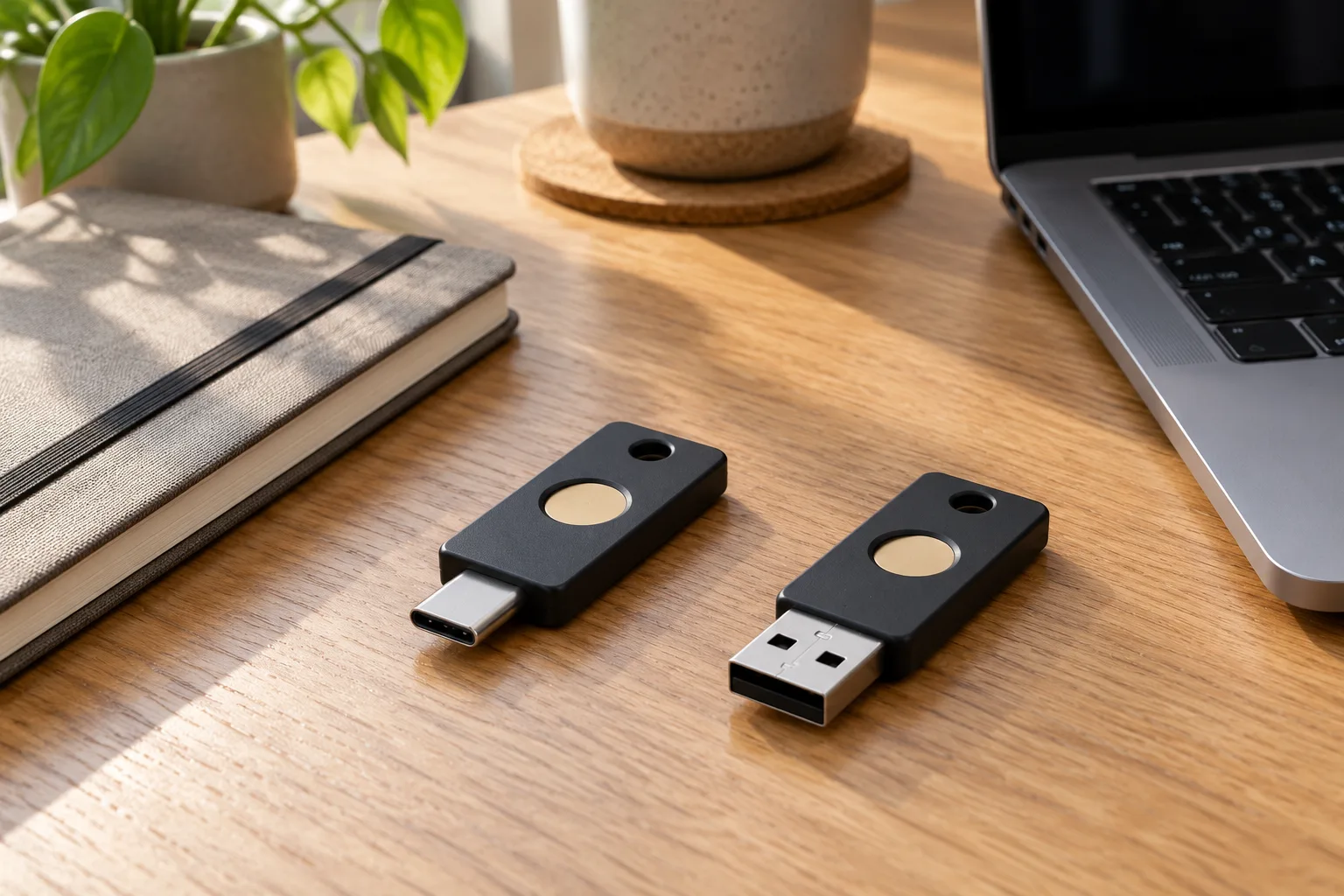
A hardware key can provide an authenticator you keep separately from your usual device. It also creates something you can misplace. Match its connector to your computer, and verify the intended NFC workflow on your phone rather than assuming that every NFC device supports the same interaction. A second key only becomes useful for recovery after you register it with the relevant account and test it.
Step 1: Map the accounts that control your blog
Write a short access inventory before editing settings: WordPress administrator, hosting control panel, domain registrar, recovery email, and the provider holding any synced passkeys. Add the responsible person and the recovery route for each. Do not put passwords or recovery codes into a shared editorial document. The inventory should identify where protected recovery material belongs, not expose that material.
Consider a hypothetical travel blogger who protects WordPress but leaves hosting accessible through a reused password. An attacker may not need the dashboard login at all. Conversely, an owner who protects everything through one phone may struggle after losing it. The inventory exposes both gaps. Give special attention to the email account that can reset other accounts: it is part of the publishing infrastructure.
Step 2: Confirm the WordPress implementation
Self-hosted WordPress and WordPress.com are different environments. A help page for one should not be treated as instructions for the other. For example, WordPress.com documents security keys within its account verification flow. On a self-hosted blog, inspect the login solution actually installed, its current documentation, and its support for your version and login form.
Wordfence is one current example: its documentation describes optional and required passkeys, user registration, and backup access. Older forum replies saying it lacks passkeys should not outweigh the current product documentation. That example is not a reason to install another security plugin over an existing one. First establish whether your present solution already meets the requirement, and avoid running overlapping login controls without understanding their interaction.
Follow a controlled maintenance process if an update is necessary. DailyNetBlog’s WordPress plugin updates checklist provides a separate workflow for that job. Keep this authentication change small enough that you can identify what caused a problem. Do not combine it with a theme migration, a domain change, and a batch of unrelated plugin replacements.
Step 3: Prepare recovery before registration
Use the WordPress backup checklist to arrange a recent recoverable site backup and confirm how to reach your hosting provider if the dashboard becomes inaccessible. A backup protects site data; it is not the same thing as a working login method. Restoring a site may restore the same restrictive settings. Write down who can help and what ownership verification they require before you need urgent assistance.
Choose a primary authenticator and a backup with a different practical failure mode. For example, your normal synced passkey plus a separately stored hardware key may suit your workflow. Another arrangement may work better if you avoid cloud credential syncing. The requirement is that you can describe and test the fallback, not that you purchase a particular accessory.
Decide where the backup will remain. Keeping both keys on the same keyring is convenient but does little for a lost-keyring scenario. A sensible storage location should be accessible to you when needed and protected from casual access. Do not photograph recovery secrets into an ordinary cloud photo album merely because that feels easier to remember.
Step 4: Register WordPress passkeys while access is optional
Use your implementation’s current instructions. In Wordfence, the documented route is Login Security, then My Passkeys; name the credential, complete the authenticator prompt, and confirm its appearance in the list. Start with an optional role policy so that a failed experiment does not immediately remove your existing route. The official Wordfence passkey documentation explains the available controls and recovery considerations.
Use names that describe what you would retrieve: “Daily laptop manager” or “Spare key in secure storage” is more useful than “Passkey 2.” Avoid names containing secrets. Register the intended backup separately and check that both entries are present. Do this from a device you control, with time available to troubleshoot, rather than minutes before a sponsored post deadline.
Step 5: Test the fallback as a real sign-in
Keep the original authenticated session available while you test in a separate supported browser context or another device. Merely seeing a credential in a list is insufficient. Begin at your usual login page, select the intended authenticator, and verify that the dashboard belongs to the expected user. Then repeat using your backup while deliberately setting the primary device aside.
Record the result in a simple log: date, account, authenticator used, device used, and whether access succeeded. Do not record PINs, private keys, cookies, or recovery codes. A test that silently uses the primary manager again does not prove the spare key works. Read the selection prompt carefully enough to know what you actually tested.
If private browsing behaves differently, consult the browser and provider requirements. Google’s passkey requirements and device guidance illustrates how support depends on the browser, operating system, and account context. Its account instructions are not WordPress configuration instructions. Use a supported alternative device when that provides a clearer test than repeatedly retrying an incompatible environment.
Step 6: Decide whether password fallback should remain
Keeping password fallback can make initial adoption easier, but that password route still needs protection. Removing it reduces one route while increasing dependence on registered authenticators and recovery procedures. Make the decision after testing, not because “passwordless” sounds like a complete security policy. A strong password plus established two-factor authentication remains a reasonable interim setup when passkey compatibility is unresolved.
If several people contribute, start with a willing administrator and give each person their own account. Do not make a role-wide requirement until affected users understand the deadline and can demonstrate access. The owner should not register credentials on behalf of freelancers or circulate a shared administrator identity. Access should follow the work each person actually needs to perform.
Check integrations separately. A tool that posts through an API may not use the same authentication path as an interactive browser login. Inventory legitimate integrations, review their documented authentication, and test essential publishing tasks after the change. Do not assume a new dashboard policy invalidates every old integration credential or secures every route into the site.
Step 7: Rehearse replacement and maintain the setup
Before retiring a device, register and test its replacement, then remove the obsolete credential from the website where appropriate. Deleting an entry in a password manager and revoking a credential at the website are different actions. Plan for both sides. Keep a brief record of which accounts need attention when a device is sold, lost, or reassigned.
Review access after major changes: a new computer, a changed login domain, a different password manager, or a departing collaborator. Add a short access check to your existing maintenance routine. Keep visual redesign work separate; the Kadence Blocks setup guide addresses that different part of running the blog. Authentication changes deserve their own verification window.
The broader baseline still applies: maintain software, use trusted components, limit privileges, and protect the devices used for administration. The WordPress hardening handbook treats security as risk reduction and preparation. A better login does not replace a recovery process, and a recovery process should not quietly depend on the same single device you are trying to protect against losing.

Optional hardware: buy for compatibility, not reassurance
You may already have what you need through compatible devices or a password manager. If a physical backup solves a real gap, compare the connector, supported authentication standards, phone workflow, and storage arrangements. These are documented product options, not devices tested for this article. Generated images accompanying this guide are illustrative scenes and do not depict a product test.
Affiliate disclosure: This section contains Amazon affiliate links. As an Amazon Associate I earn from qualifying purchases.
Yubico Security Key C NFC
The Security Key C NFC on Amazon is the USB-C option to consider for compatible computers and supported NFC phone use. Yubico positions the Security Key series around FIDO authentication. Confirm the exact model and your service’s requirements before ordering. It is not interchangeable with every feature in the broader YubiKey range, and buying it does not automatically enable passkeys on WordPress.
Yubico Security Key NFC
The Security Key NFC on Amazon offers a USB-A alternative for a different port layout. Choose it because the connector suits your equipment, not because two similar names imply identical physical compatibility. Both choices need registration and a recovery plan. Check the seller and exact listing; prices and availability are deliberately omitted because they can change.
A video explanation of synced and device-bound passkeys
All Things Secured’s “Passkeys SUCK (here’s why + how I use them)” explains the distinction between syncable and single-device credentials. Its published description and chapter list cover that choice and a backup strategy, which makes it useful context for this guide. It is a general explanation from 2024, not current WordPress plugin instructions; use the documentation linked above for implementation details.
Frequently asked questions about WordPress passkeys
Can I use a passkey without buying a security key?
Yes, if your WordPress login implementation and existing authenticator support the necessary workflow. A compatible device or password manager may be sufficient. Start there, then decide whether a separately registered physical key would make recovery more dependable for your circumstances.
What should I do first if I lose my primary device?
Use the backup sign-in route you tested earlier. From a trusted device, review the affected account and revoke the lost authenticator where appropriate. If no backup works, follow your provider or host’s verified recovery process. Avoid unsolicited offers to recover the account for you.
Will passkeys protect my hosting and domain accounts too?
Only if you configure supported protection for those accounts separately. A WordPress credential does not automatically secure your registrar, hosting panel, or recovery email. Keep an inventory so that a strong dashboard login does not hide weaker access elsewhere.
Can I create passkeys on a shared office computer?
Avoid making a shared machine the permanent home for your administrator credential. Use an authenticator you control, and understand what the browser or manager intends to save. On shared equipment, sign out when finished and do not approve unexpected credential-storage prompts.
Your next action
Before changing a login policy, write down your primary authenticator, your tested fallback, and the route to hosting support. Complete one successful backup sign-in before making any access requirement stricter. That produces a concrete improvement you can verify. It also fits DailyNetBlog’s editorial standard of practical, reader-first guidance: a useful security decision should remain understandable when you need it under pressure.